Signing Instruments
Once you have entered all the required information for your Instrument, and selected the correct statements, you can sign it in Teraview.
Note: The data and display shown in these scenarios may differ from the display in your training environment.
In this series of steps, you will:
- Validate the Instrument
- Address the outstanding requirements for signing
- Sign the Instrument
Before we go ahead with signing, let's have a look at the different locations in Teraview where you can sign one or more Instruments (the signing process is the same from any location, but multiple Instruments can only be signed from the Instrument List):
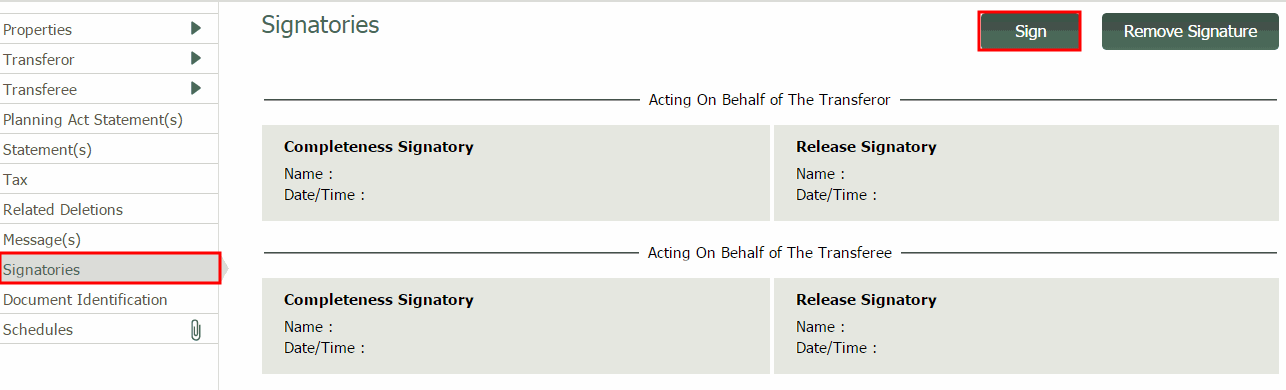
Sign an Instrument from the Signatories Branch
From the Signatories branch of any individual Instrument, you can select the Signbutton. Once the Instrument is signed from any location, the signature will appear in this branch.
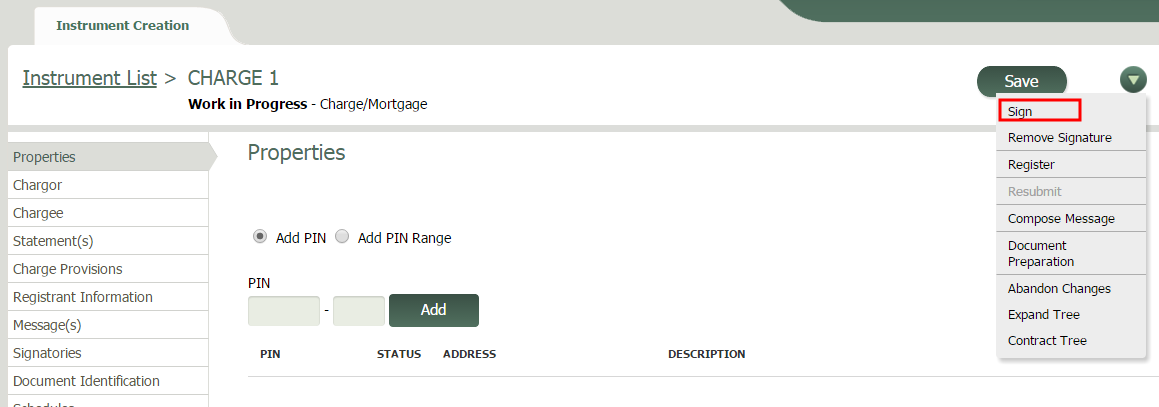
Sign an Instrument from any branch in the Instrument
From any branch in the Instrument, you can access the green arrow menu  in the top right corner of the screen and select Sign.
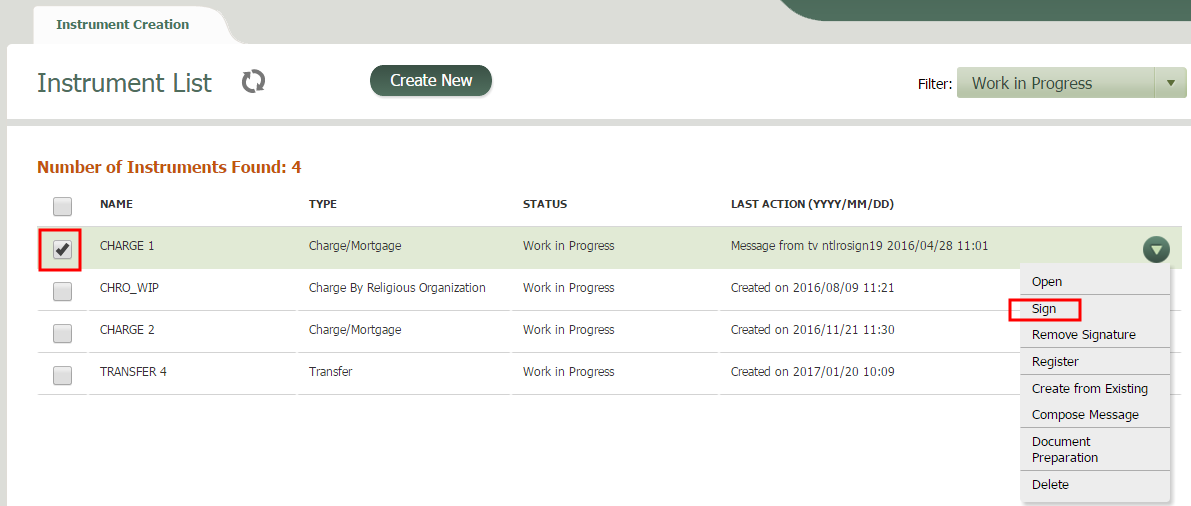
Sign an Instrument from the Instrument List
From the Instrument List, select an Instrument by double clicking or selecting the checkbox, and select Sign from the green arrow menu to the right of your selected Instrument.
For this scenario, we will sign a one party Instrument from the Signatories branch.
 To sign an Instrument
- Select the Instrument in the Instrument list.
- From the green arrow menu to the right of the Instrument, select Open.
- Select the Signatories branch.
- Select the Sign button .
The Signing window opens.
Since this Instrument is one-party, the Completeness signature is the only option, and is already selected. So is the On Behalf Of option.
- In the Authorization Statements section, select the required statement.
Your window should look something like this:
- Select the Validate button.
Any validation errors for the Instrument will appear in the red Signing Validation Errors window at the top of the screen.
- Select the blue link next to the error message in the list.
The relevant branch displays.
- Correct the error.
- Select the Save button .
- From the green arrow menu in the top right of the screen, select Sign.
A green check mark will appear in the top of the window, and a message indicating that signing was successful.
- Enter your Password and RSA Token.
- Select Sign.
A confirmation message with a green check mark will appear on the screen.
The signature displays in the Signatories tab.